Walt can read the devices and accounts you already have, so it knows the house without you typing it in: thermostat temperatures, sensor batteries, door locks, your car's mileage. Connecting an account is a job for an adult. Once it's done, everyone in the house sees what it reads.
What Walt connects to
Thermostats (House → Energy, under Heating & cooling)
- ecobee, including its room sensors
- Google Nest
- Honeywell Home (Resideo)
- Daikin One, Amana and Goodman thermostats, with your Daikin app email and an integration token from the Daikin One Home app (SkyportCare → Home integration → Get integration token)
A house can connect more than one, such as an ecobee upstairs and a Nest downstairs. Walt shows them as one list. Walt only reads thermostats and never changes the temperature.
Sensors, locks and hubs (House → Sensors)
- Ring alarm sensors and keypads
- SmartThings, including locks and door, motion and leak sensors
- Flair vents and Pucks
- YoLink, including its hubs and door, leak, motion and temperature sensors
- SwitchBot meters, door, motion and leak sensors, locks and hubs, with a token from the SwitchBot app's Developer Options
- Airthings air monitors, with an API client from dashboard.airthings.com
- SensorPush thermometers on a SensorPush WiFi gateway, with your SensorPush email and password
- Your own hub, such as Hubitat or a home server, through a webhook token
- Shelly devices, with a script on the plug itself or Walt's MQTT forwarder on your home network (see Send a Shelly sensor straight to Walt)
Yard (House → Sensors)
- Husqvarna Automower robot mowers. You sign in on Husqvarna's own page. Walt opens a work order when a mower stops on a fault, like trapped, lifted or off its wire, and closes it once the mower is clear. It also shows when a mower goes offline. Walt never starts, parks or schedules a mower, and it checks every couple of hours rather than every few minutes.
Cars (House → Vehicles)
- Most makes, through Smartcar: Acura, Alfa Romeo, Audi, BMW, Buick, Cadillac, Chevrolet, Chrysler, Dodge, Fiat, Ford, Genesis, GMC, Honda, Hyundai, Infiniti, Jaguar, Jeep, Kia, Land Rover, Lexus, Lincoln, Lucid, Mazda, Mercedes-Benz, Mini, Nissan, Polestar, Porsche, Ram, Rivian, Subaru, Tesla, Toyota, Volkswagen and Volvo. You sign in with the car maker's own app account on Smartcar's page. Each car costs a $4.99/mo add-on on your Walt plan, and you agree to it before you connect.
- Any car with a Bouncie plug-in, with your Bouncie account
Home charger (House → Energy)
- Tesla Wall Connector. You sign in on Tesla's own page. Walt reads what the charger gave each car and uses it to correct what home charging cost. It never starts or stops a charge.
- Enphase IQ EV Charger. You sign in on Enphase's own page. Walt reads the charger's sessions once a day. It never starts or stops a charge.
- Emporia EV charger. It comes with your Emporia account: sign in on Emporia's page from Home charger, or from Sensors if you have a Vue. Walt reads each charge hour by hour, and tells you if the charger stops reporting.
- ChargePoint and Wallbox are not supported yet: neither offers a sign-in for other apps.
Calendars (Calendar)
- iCloud, Fastmail and Nextcloud calendars
Connect an account
- Go to the page for that kind of device: Energy, Sensors or Vehicles.
- Tap the tile for your brand.
- Sign in to that company's account when Walt sends you there, or enter the details Walt asks for. Some ask for a verification code they email or text you.
- Walt brings you back to the page and starts reading. The first readings can take a few minutes.
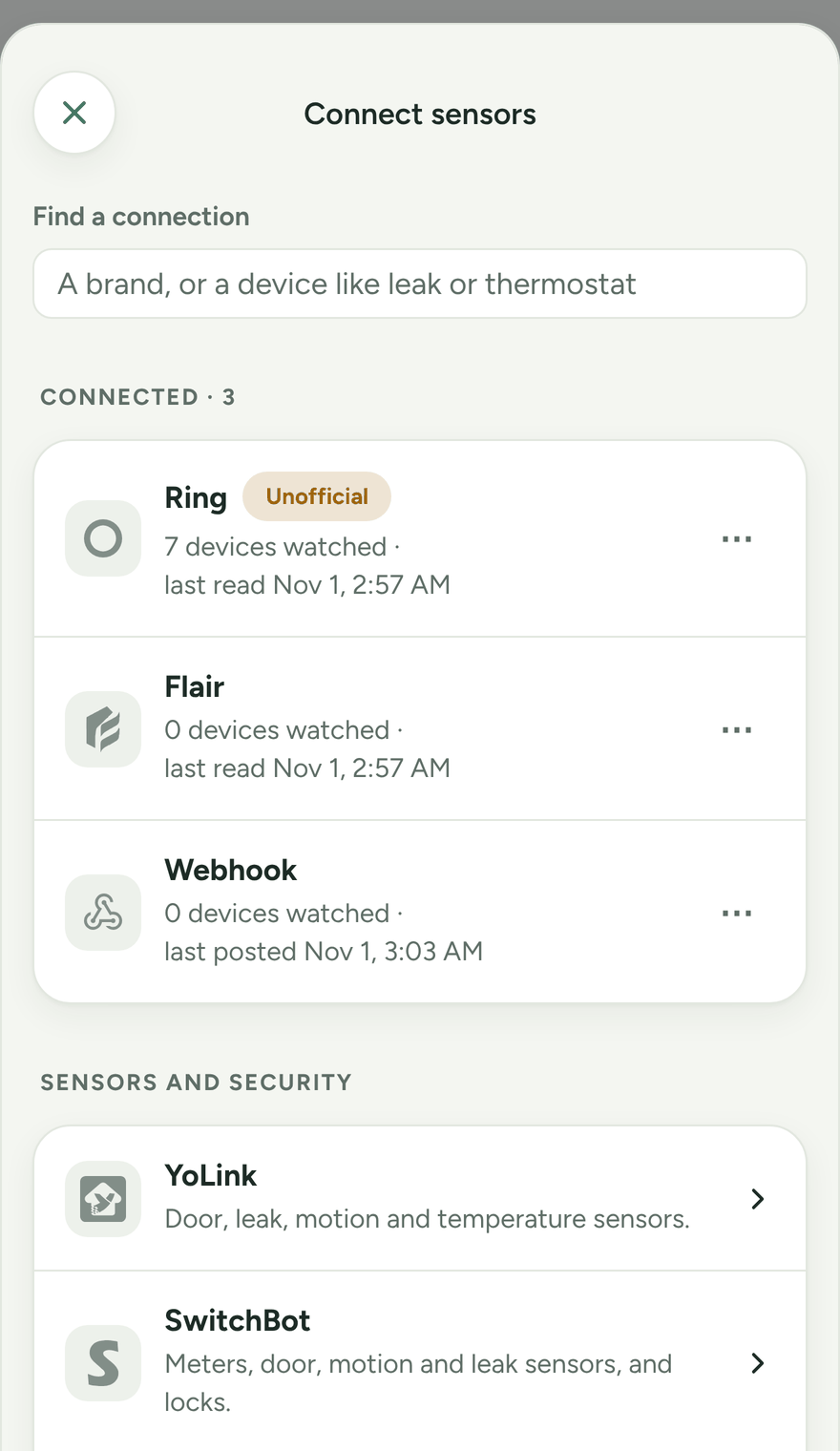
Walt keeps the sign-in for each connected account sealed on its server. It never shows it to anyone in the house.
Unofficial connections and passwords
Walt prefers an official sign-in: you approve Walt on the company's own site, or paste a key from its app, and Walt never sees your password. Some companies offer neither. For those, Walt asks for the email and password you use in their app, and the connection is tagged Unofficial.
- Unofficial means the company has no official way for other apps to connect, so Walt signs in the way their own app does. It can stop working when the company changes its app. Walt will tell you on the Sensors page if it does.
- How Walt keeps the password. It's encrypted in transit: it only ever travels over HTTPS, between your browser and Walt and between Walt and the company. Where the company gives back a longer-lived sign-in, Walt uses your password once and stores only that. Where it doesn't, Walt stores the password encrypted at rest, with AES-256 under a key kept apart from the database, and never shows it to anyone. Each connect sheet says which.
- We don't recommend it. Giving any app your password is a risk, however carefully it's kept. If you go ahead, use a password you don't use anywhere else. Change it in the company's app and Walt simply asks you to sign in again.
Walt asks each of these companies for a proper sign-in, and moves over as soon as one exists.
Watching batteries
Walt watches the batteries and connections of everything it reads. When a sensor's battery runs low or a device stops reporting, Walt flags it on the Sensors page so you can swap it before it matters.
Walt is not an alarm system
Walt shows battery and connection status, and readings like temperature and humidity. It is not a life-safety system. It does not alert you to leaks, smoke or carbon monoxide. Keep relying on your alarm company, your smoke and CO detectors, and your devices' own apps for that.
Disconnect an account
Open the page the account is connected on, pick its tile, and tap Disconnect. Walt forgets the sign-in and stops reading. Nothing in the account itself changes.
Something not working?
If an account stops reading, picking its tile usually offers to reconnect it. If that doesn't fix it, use Contact support in the menu and choose Something's broken (see Your data and privacy).